
4.4. Sign in
Important notes
Correct Access URL
If you have created a shortcut to the URL https://api.aviationreporting.eu/idp/login, please be aware that this address points to the dedicated login server only. When accessed directly, the system does not know where to redirect the user after authentication, resulting in a failed or incomplete login process.
To ensure proper access and functionality, always use the official entry point:
Valid URL: https://e2.aviationreporting.eu
This address initiates the login flow correctly and allows the system to return you to the appropriate reporting environment after authentication.
Automatic Time Zone Configuration
For the time being it’s essential that your device’s time zone is set to automatic. If your local time doesn’t match the server time, the system may interpret your authentication token as expired—even if it was just generated.
How to ensure your time zone is set automatically:
- On Windows: Go to Settings → Time & Language → Date & Time Enable:
- “Set time automatically”
- “Set time zone automatically”
- On macOS: Go to System Preferences → Date & Time Check the box: “Set time zone automatically using current location”
- On mobile devices (Android/iOS): Make sure “Automatic date & time” is enabled in your system settings.
This configuration ensures your access token remains valid and prevents login issues related to time synchronization.
TOTP codes change every 30 seconds, and clock deviations can cause codes to be rejected.
Sign in
Standard Sign-In Process
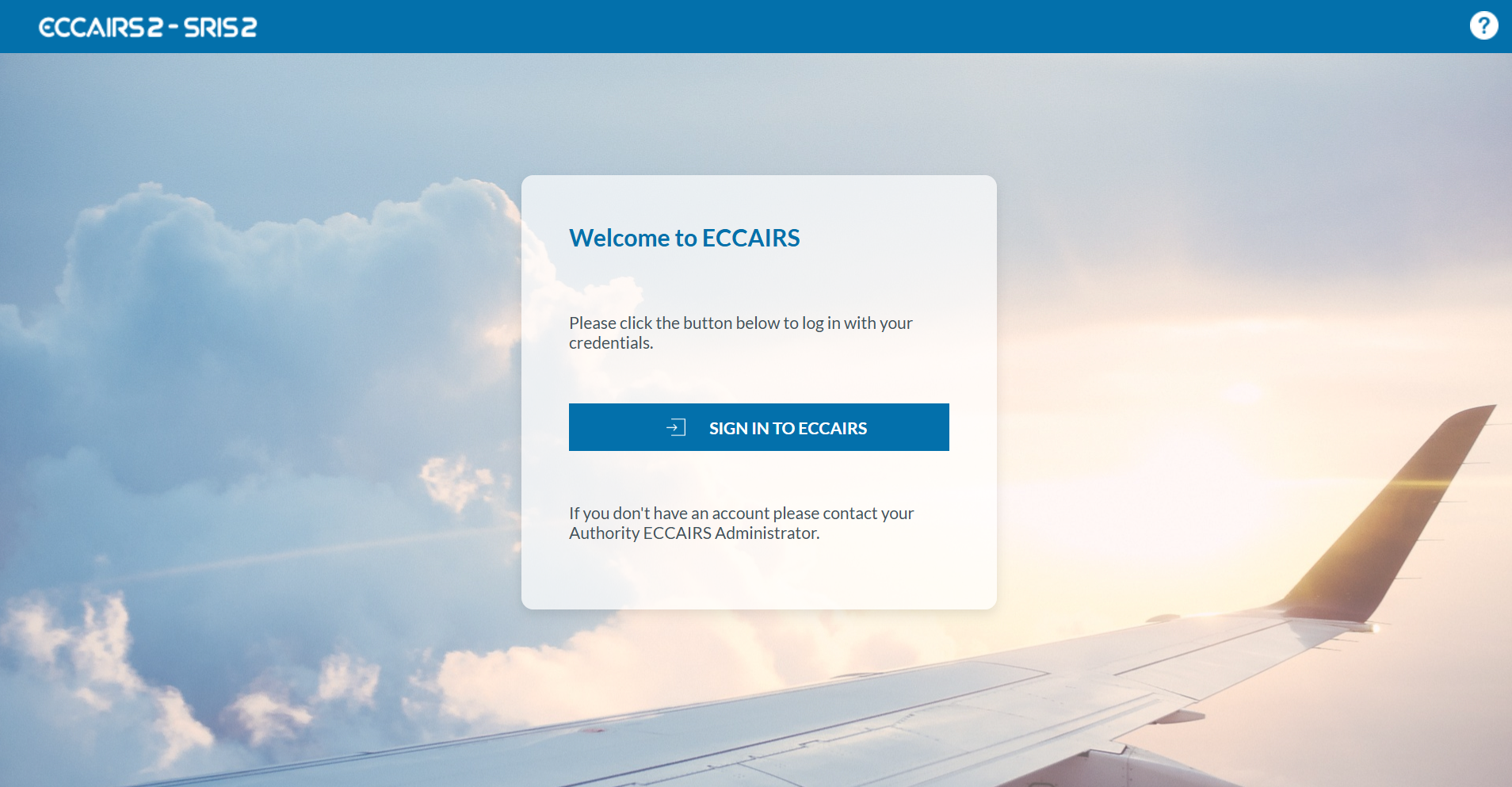
-
Click on 'SIGN IN TO ECCAIRS'.
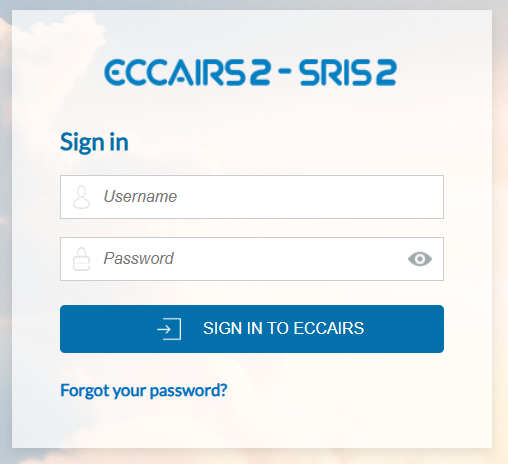
-
Enter your Username and Password, then click 'SIGN IN TO ECCAIRS'.
-
Complete the second factor verification:
-
If TOTP is already configured: Open your authenticator app, enter the 6-digit code, and click 'SUBMIT'.
-
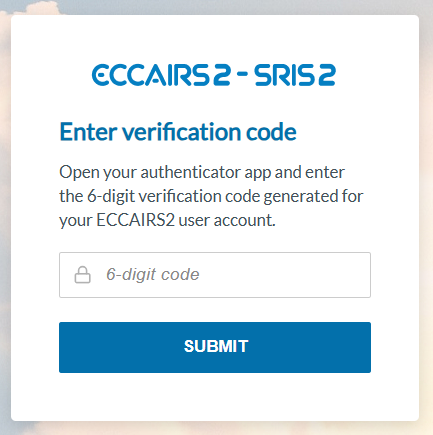
-
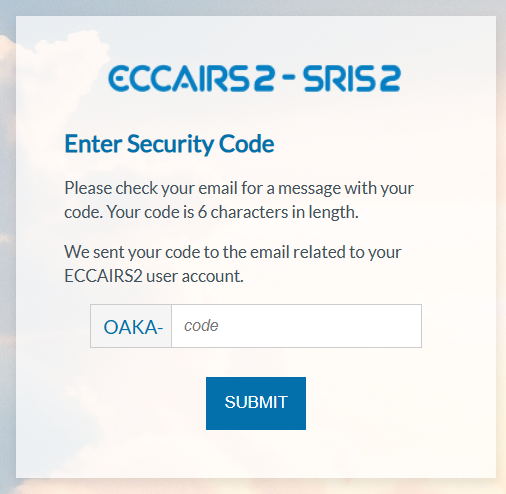
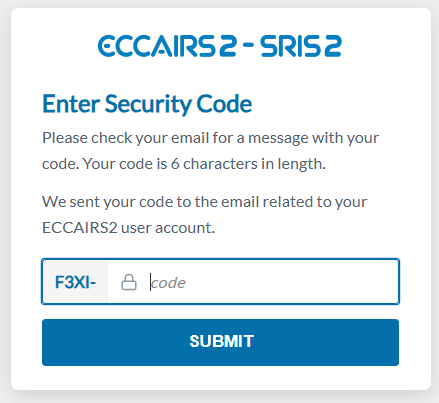
If TOTP is not yet configured: Check your email for the one-time code sent by
do-not-reply@aviationreporting.eu, enter it, and click 'SUBMIT' (you will then be prompted to configure TOTP).
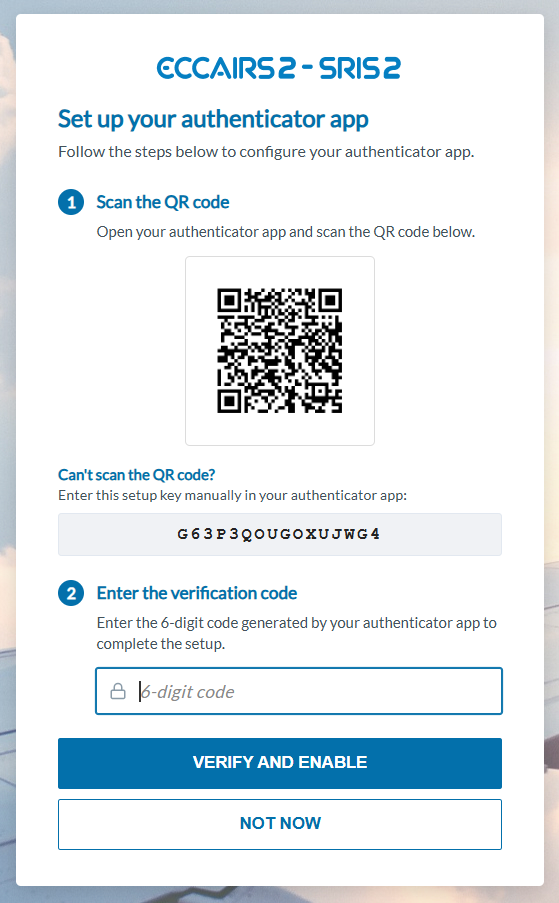
First-Time Setup of the Authenticator App (TOTP)
Setting up an authenticator app replaces email codes with time-based one-time codes generated on your smartphone or desktop app (such as Microsoft Authenticator, Google Authenticator, Twilio Authy, or 1Password).
Scenario A: Setup during Sign-In (Prompted after email verification)
After entering your email security code, the system will prompt you to set up your Authenticator App:
-
Prepare your Authenticator App:
-
Open your chosen authenticator app on your smartphone or device.
-
Tap the Add account button (often a
+icon) and select Work or school account or Other (Google, Facebook, etc.).
-
-
Link ECCAIRS 2 to your app:
-
Using camera: Select Scan QR code in your app and point your camera at the QR code displayed on the screen.
-
Manual entry (if camera is unavailable): Click or copy the Secret Key displayed beneath the QR code, select Enter key manually in your authenticator app, paste the code, and confirm.
-
-
Verify and Activate:
-
Your authenticator app will immediately generate a temporary 6-digit numeric code labeled ECCAIRS 2.
-
Enter this 6-digit code into the 'Verification Code' box on the portal screen.
-
Click 'SUBMIT'.
-
-
Completion:
-
A confirmation message will appear confirming your authenticator is linked.
-
You will be automatically redirected to the 'Report and Occurrence' page. From this point forward, you will use this app for all future logins.
-
Note on optional vs. mandatory setup: If your Athority enforces TOTP, this set up cannot be skipped. If TOTP is optional, you can click 'NOT NOW' to postpone it (the reminder will reappear after 14 days, up to a maximum of 3 times).
Scenario B: Setup at any time from 'My Account'
If you previously skipped setup or want to configure it beforehand:
-
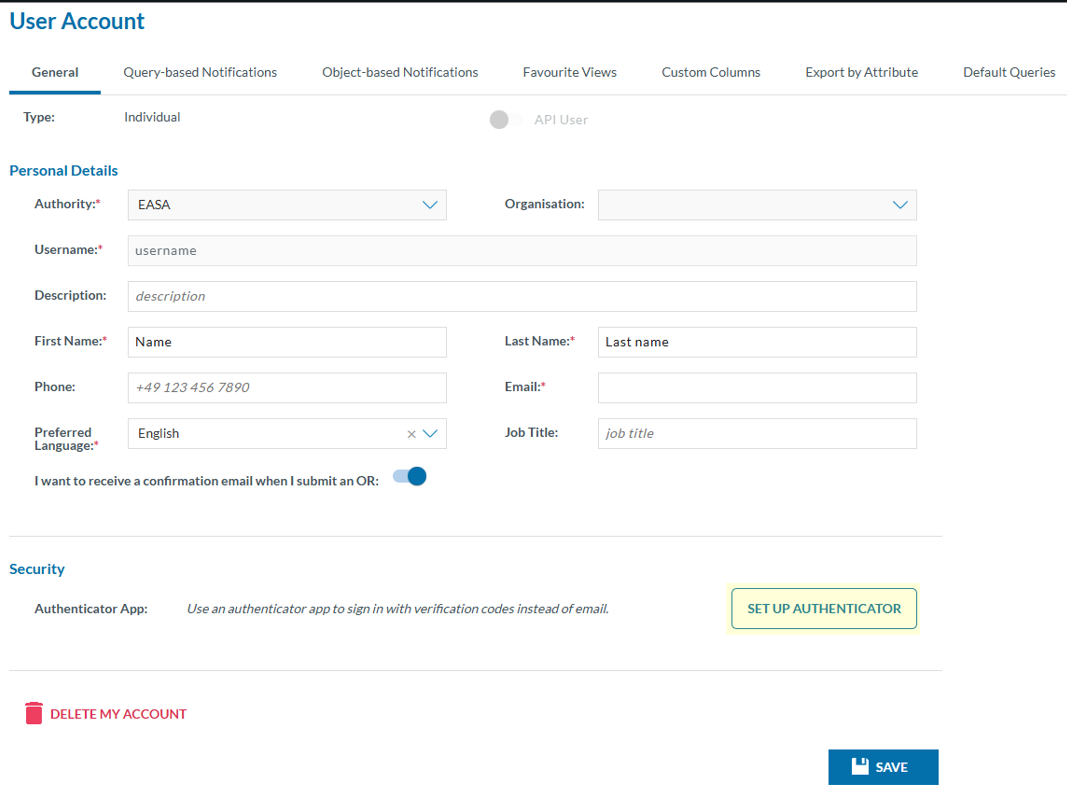
Sign in to ECCAIRS 2 and click on your user profile icon (top right).
-
Select 'My Account' and stay on the General tab.
-
Scroll down to the Security section.
-
Click on 'SET UP AUTHENTICATOR'.
- Enter your security code sent to your email address.
-
Scan the QR code with your authenticator app (or enter the key manually).
-
Enter the 6-digit code shown in the app into the confirmation field and click 'VERIFY'.
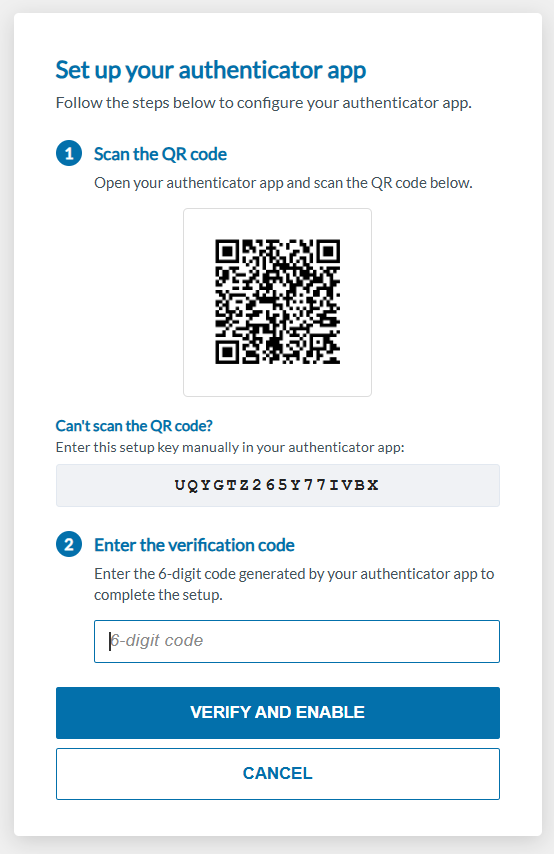
-
The status will update to 'Configured'.
Frequently Asked Questions & Troubleshooting
-
"Invalid code" error: Ensure your mobile phone’s clock is synchronized automatically in your device settings. Also verify you are entering the code before the 30-second countdown in your app resets.
-
Lost or replaced phone: If you change mobile devices or lose access to your authenticator, contact your Authority Administrator to request a Reset TOTP. Once reset, you will temporarily log in via email code and be prompted to enroll your new device.