
4.6. Report as an Organisation
The Reporting Portal enables reporting organisations to submit occurrence reports to their competent authority. It is designed to support a wide range of reporting needs, from organisations that submit only a small number of reports each year to those that transfer data directly from their own systems.
The Reporting Portal supports three reporting methods:
- Online reporting through a web interface;
- Offline reporting using a PDF form that can be downloaded, completed, and uploaded through the portal;
- E5X file submission for organisations that exchange occurrence data electronically from their own Annex 19 database to the ECCAIRS environment of the competent authority or the Agency.
In addition, organisations wishing to establish direct and automatic communication between their own system or application and E2, in order to automatically submit occurrence reports t, may also use the E2 API (Application Programming Interface), which provides a machine-to-machine (M2M) reporting method.
4.6.1. Reporting through the Reporting Portal
The method available for reporting on behalf of your organisation depends on your user role:
- Preparator or Preparator Limited: you may create reports online only, but you cannot submit them.
- Reporter: you may create and submit reports online or offline, or submit them through E5X.
To report on behalf of your organisation, there are different ways to do depending on your user role:
- Preparator or Preparator Limited: You can only create reports online however you cannot submit them.
- Reporter: You can create and submit reports online, offline or you can submit E5X.
Preparator or Preparator limited
As Preparators or Preparators Limited, you are authorized to create OR within the system, but you cannot submit them to the Authority. Reports must be prepared online; although you may download the PDF form for completion, uploading it is not possible. If the report is completed offline, a designated Reporter from your organisation is responsible for submitting it.
Preparator Limited
As a Preparator Limited, you can only create, view, edit, and delete your own reports.
The status of the OR can be: Draft and Prepared.
Preparator
As a Preparator, you can:
- Create, view, edit, and delete your own reports
- View and edit all organisation reports
The status of the OR can be: Draft, Prepared and Sent.
Create an OR by a Preparator or Preparator Limited
To create an OR as a Preparator or Preparator Limited:
- Sign in to access the 'Report an Occurrence' page.

- Click the ‘ONLINE’ button next to one of the available webforms.
-
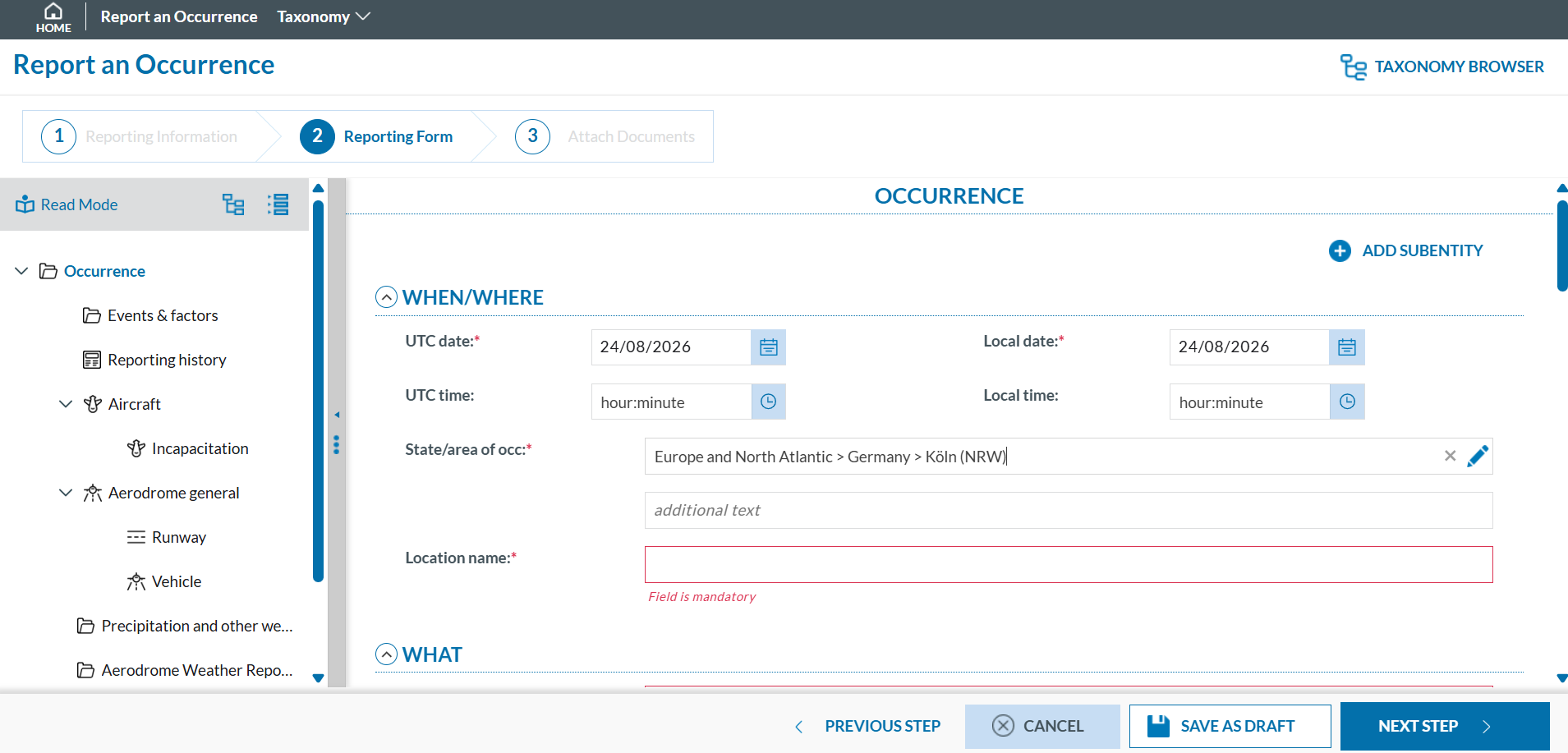
Fill out the form. Mandatory fields are highlighted —please provide the required information where available.
How to fill the Reporting Form
-
Moving between topics: You can move between topics—Occurrence, Aircraft, Narrative, and Airspace—using the navigation tree on the left pane.
-
Adding entries:
-
To add a new aircraft:
-
Click on 'Aircraft' (left pane).
-
Select 'ADD AIRCRAFT' (top-left corner of the right-hand pane).
-
-
To add a new 'Air space':
-
Click on 'Air space' (left pane).
-
Click 'ADD AIR SPACE' (top-left corner of the right-hand pane).
-
-
To add elements under 'Occurrence':
-
Click on 'Occurrence' (left pane).
-
Select "ADD SUBENTITY" (top-right corner of the right-hand pane).
-
-
- Fill in all required fields by selecting values from the drop‑down menus, selection trees or entering information in text fields when needed.
For fields that use value lists, hovering over the field value displays its explanation, helping the user choose the correct option. For example, for the Accident occurrence class: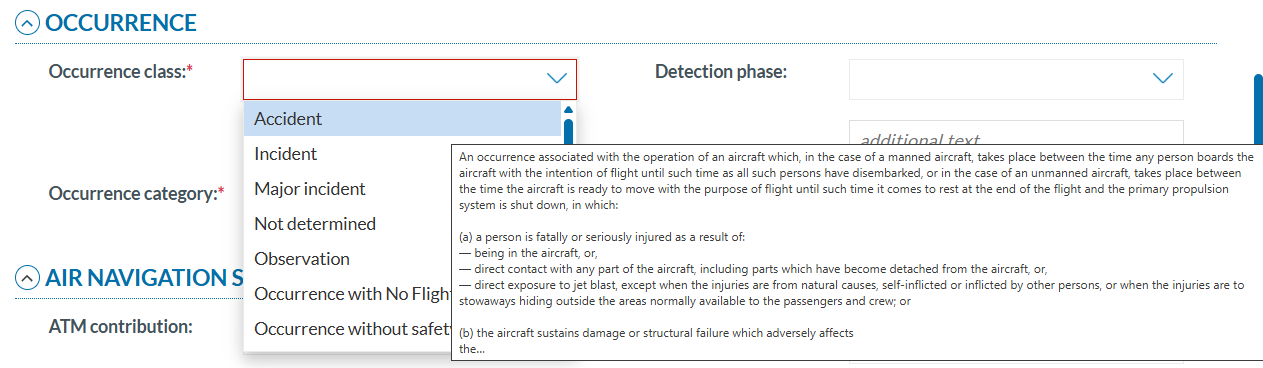
-
Saving the report:
To save a draft version, click ‘SAVE AS DRAFT’ below the form.
The report will be stored in the 'Reports' list, accessible via the 'HOME' button at the top left of the page.
You will also receive an email with a link to review and edit your saved draft report.
-
Once you've completed the report, click 'NEXT STEP' to proceed.
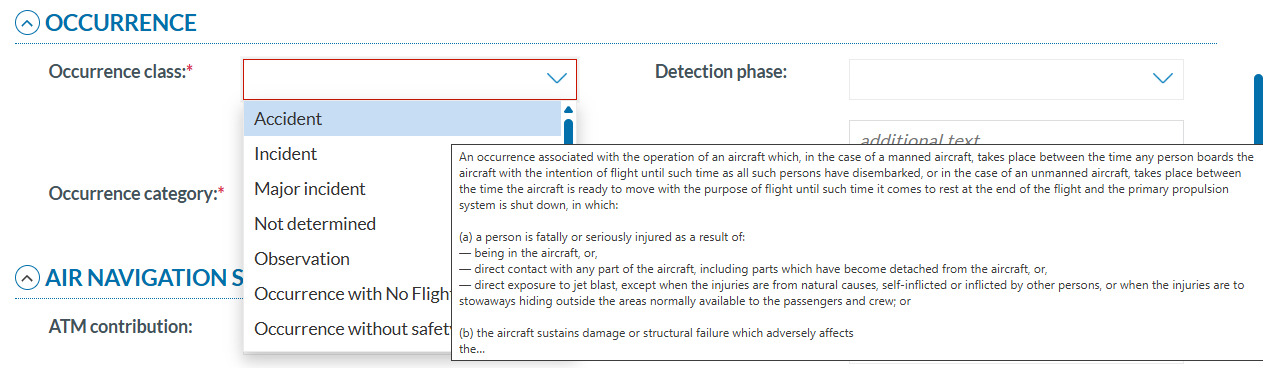
- If applicable, attach any relevant documents by clicking 'Select files...' or by drag and drop.
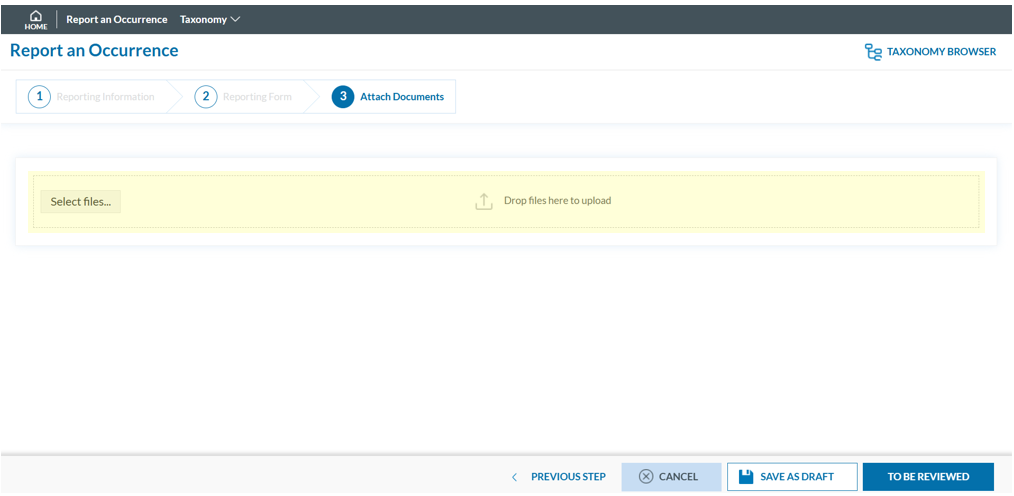
The system accepts files up to 4,000 MB in total. Supported formats include:
- Documents: .pdf, .doc/.docx, .ppt/.pptx, .xls/.xlsx/.xlsm, .xml, .rtf**, .odt**
- Images: .jpg/.jpeg, .png, .gif, .jtif**, .heic
- Media: .mp3, .mp4, .mov
- Others: .e5x, .e5z, .msg, .eml**, .zip**
❌ Files with .dll, .exe, .sys, or unknown extensions are not allowed.
You can add a description or remove the attached file by clicking on ‘x’ on the right.

- If needed, you can return to the previous step using the 'PREVIOUS STEP' button or save a draft version clicking ‘SAVE AS DRAFT’ below the form. The report will be stored in the 'Reports' list, accessible via the 'HOME' button at the top left of the page. You will also receive an email with a link to review and edit your saved draft report.
- Click 'TO BE REVIEWED' to send your report to the user(s) who has reporter permissions.
- You will get a confirmation email, and the system will display a message saying that "You have successfully sent your report(s) for review.'
If any mandatory fields are left incomplete, a warning message will appear indicating which fields are missing. If you do not have the required information at the moment, you may still proceed by clicking ‘SAVE’.
Submission of the OR by a Reporter
When a Preparator or Preparator Limited creates an OR, the application sends an email to the Organisation's Reporters so they are aware of the new reports. In the landing page, they see the OR to be reviewed under the label Prepared

Reporters can view any report in this label.
To submit a Prepared OR, Reporter has to enter in Edit mode and follow the normal reporting method. More information on this procedure can be found in the section Edit a Report.
Reporter
With the Reporter role, you can view, create, edit, delete, and submit reports on behalf of your organisation.
There are three different ways to report:
- Online
- Offline
- E5X
Report online
To report online on behalf of your organisation:
- Sign in to access the 'Report an Occurrence' page.
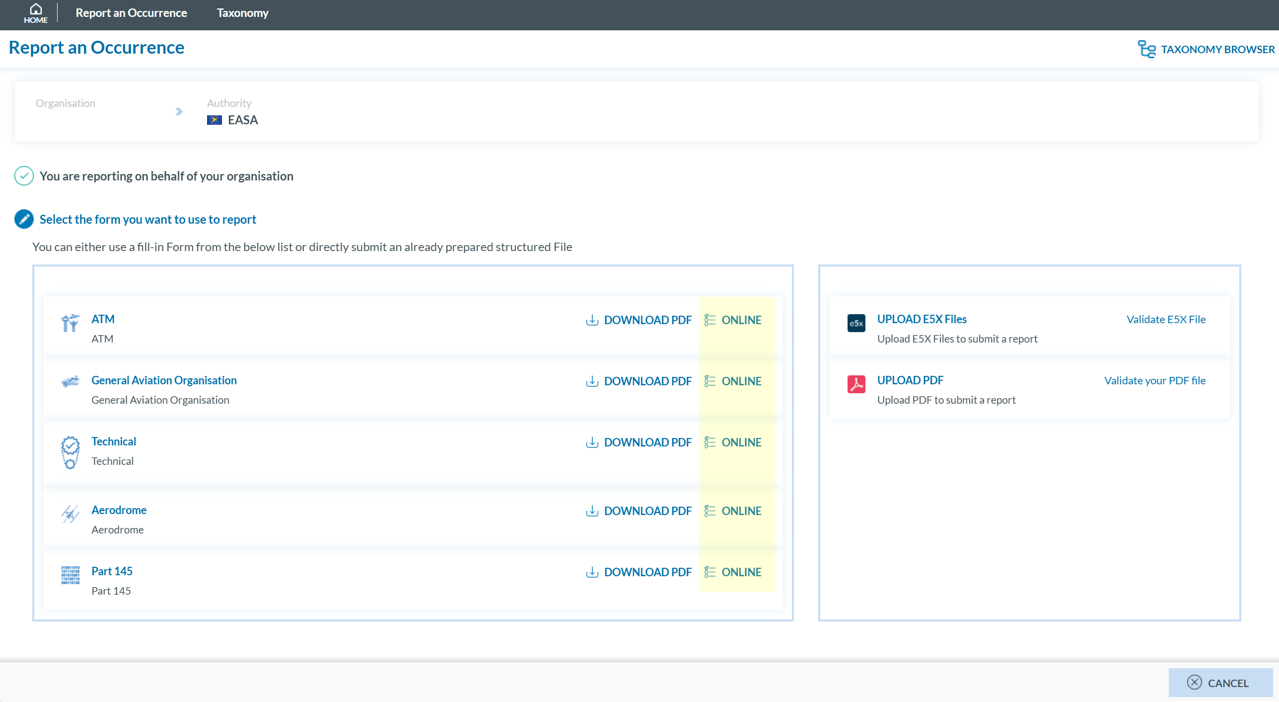
- Click the ‘ONLINE’ button next to one of the available webforms.
-
Fill out the form. Mandatory fields are highlighted —please provide the required information where available —.
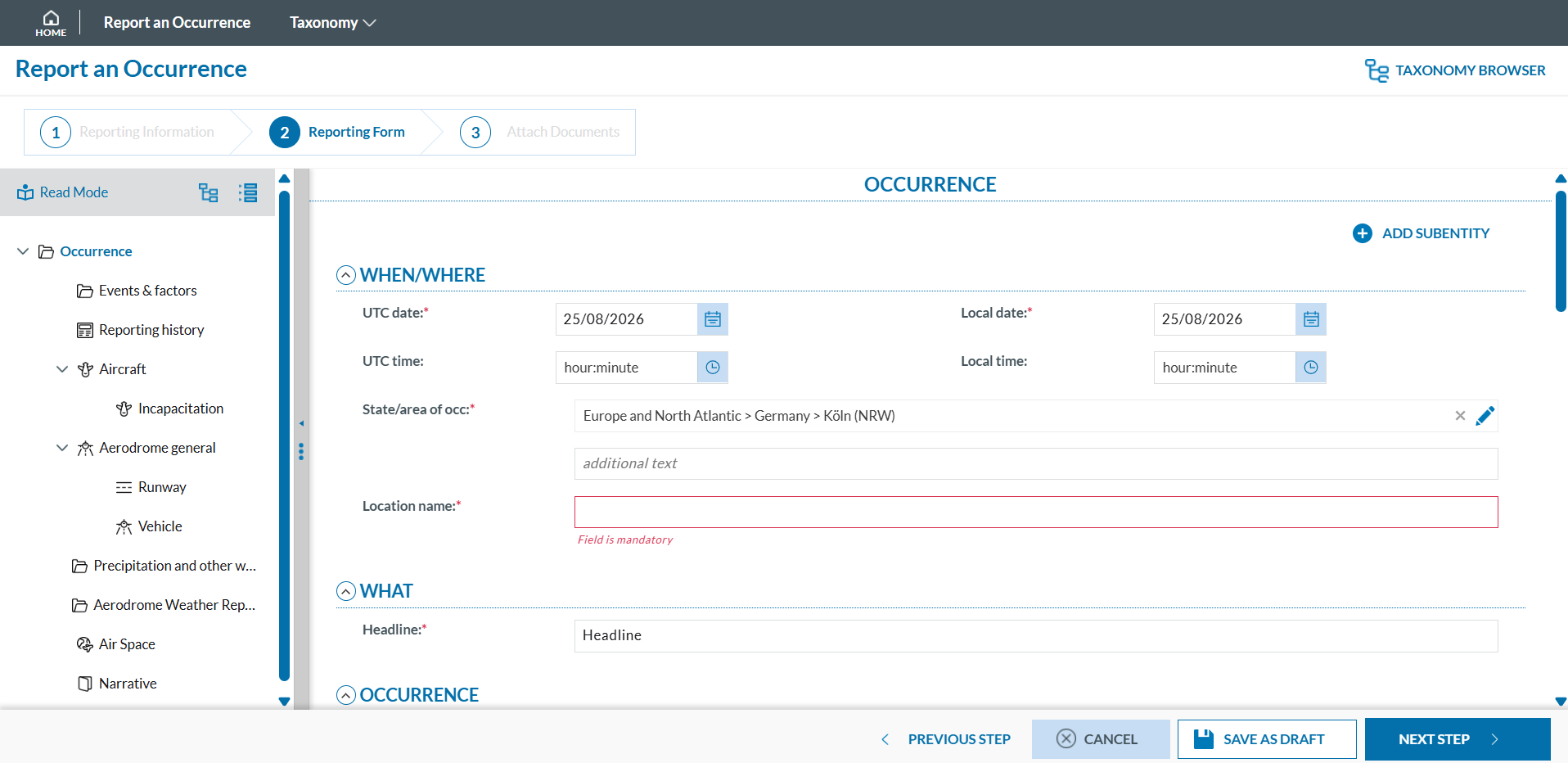
How to fill the Reporting Form
-
Moving between topics: You can move between topics—Occurrence, Aircraft, Narrative, and Airspace—using the navigation tree on the left pane.
-
Adding entries:
-
To add a new aircraft:
-
Click on 'Aircraft' (left pane).
-
Select 'ADD AIRCRAFT' (top-left corner of the right-hand pane).
-
-
To add a new 'Air space':
-
Click on 'Air space' (left pane).
-
Click 'ADD AIR SPACE' (top-left corner of the right-hand pane).
-
-
To add elements under 'Occurrence':
-
Click on 'Occurrence' (left pane).
-
Select "ADD SUBENTITY" (top-right corner of the right-hand pane).
-
-
- Fill in all required fields by selecting values from the drop‑down menus, selection trees or entering information in text fields when needed.
For fields that use value lists, hovering over the field value displays its explanation, helping the user choose the correct option. For example, for the Accident occurrence class: -
Saving the report:
To save a draft version, click ‘SAVE AS DRAFT’ below the form.
The report will be stored in the 'Reports' list, accessible via the 'HOME' button at the top left of the page.
You will also receive an email with a link to review and edit your saved draft report.
-
Once you've completed the report, click 'NEXT STEP' to proceed.
- If applicable, attach any relevant documents by clicking 'Select files...' or by drag and drop.
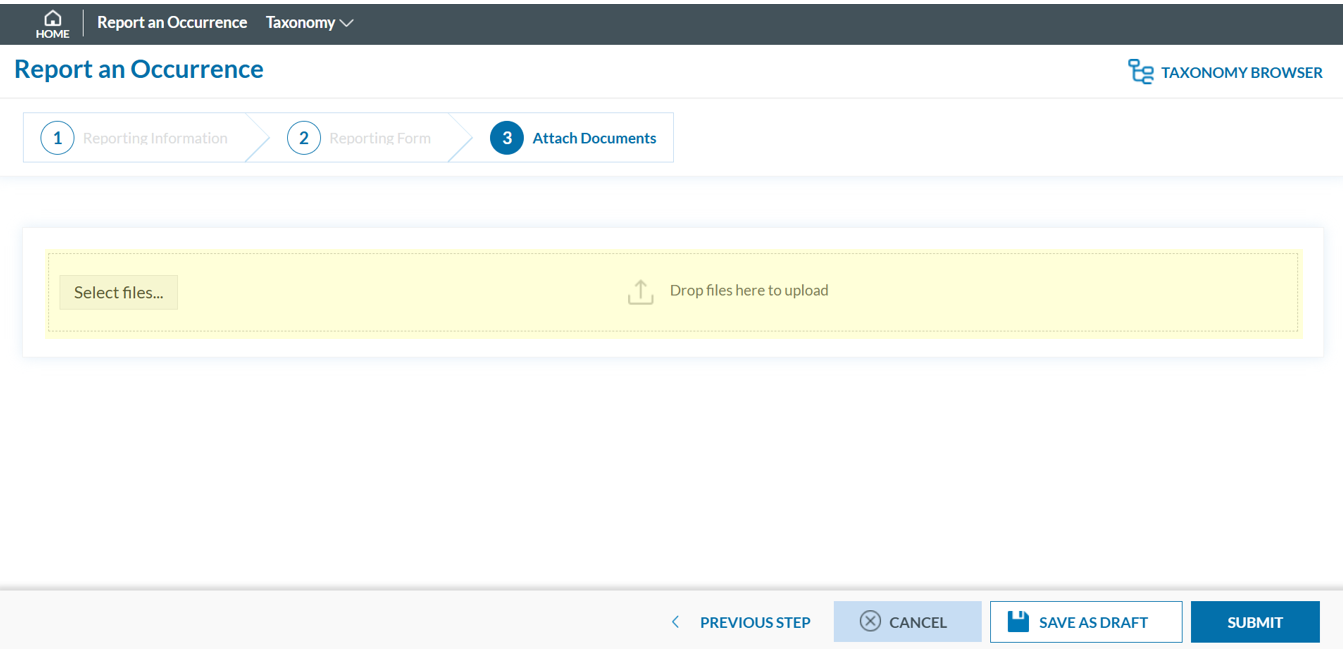
The system accepts files up to 4,000 MB in total. Supported formats include:
- Documents: .pdf, .doc/.docx, .ppt/.pptx, .xls/.xlsx/.xlsm, .xml, .rtf**, .odt**
- Images: .jpg/.jpeg, .png, .gif, .jtif**, .heic
- Media: .mp3, .mp4, .mov
- Others: .e5x, .e5z, .msg, .eml**, .zip**
❌ Files with .dll, .exe, .sys, or unknown extensions are not allowed.
You can add a description or remove the attached file by clicking on ‘x’ on the right.

- If needed, you can return to the previous step using the 'PREVIOUS STEP' button or save a draft version clicking ‘SAVE AS DRAFT’ below the form. The report will be stored in the 'Reports' list, accessible via the 'HOME' button at the top left of the page. You will also receive an email with a link to review and edit your saved draft report.
- Click 'SUBMIT' to send your report to the competent Authority.
- You will get a confirmation saying that "You have successfully submitted your report(s).'
If any mandatory fields are left incomplete, a warning message will appear indicating which fields are missing. If you do not have the required information at the moment, you may still proceed by clicking ‘SUBMIT’.
Report offline
This section outlines how to report offline on behalf of your organisaion and how to validate a PDF to submit a report.
Report offline
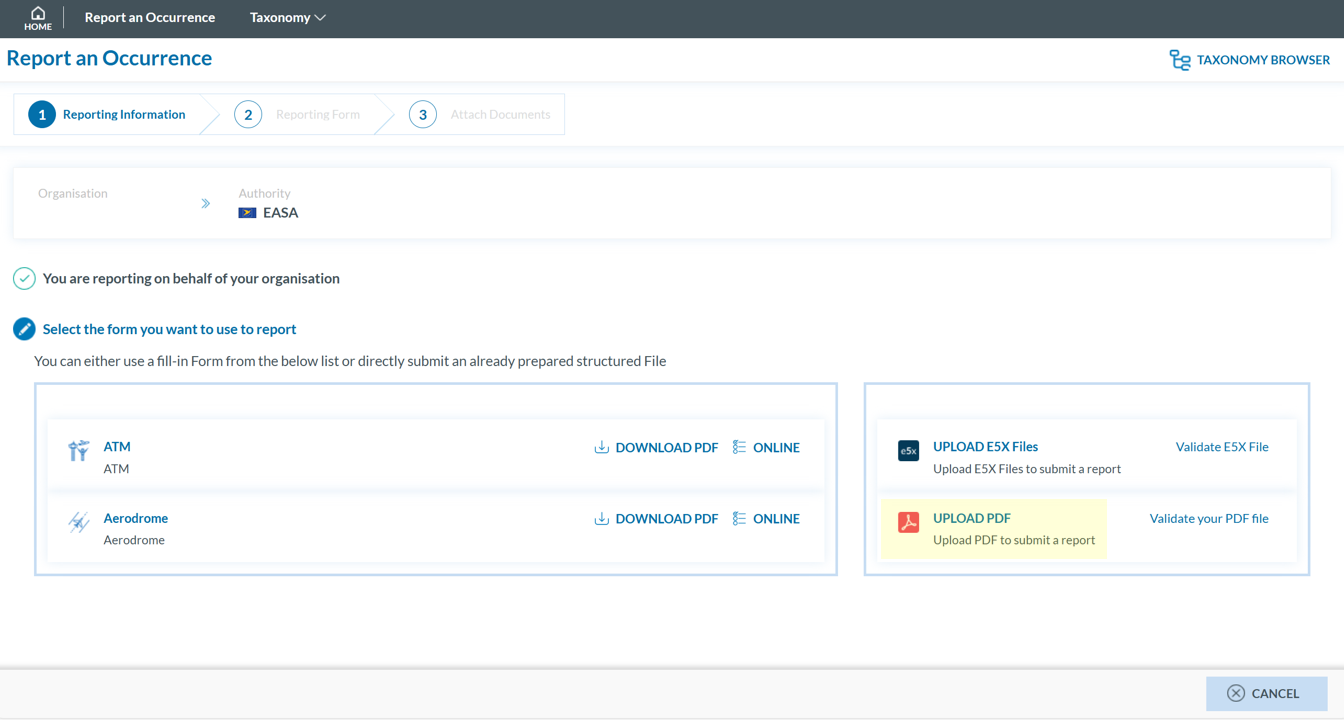
To report offline on behalf of your organisation:- Sign in to access to the 'Report an Occurrence' page.
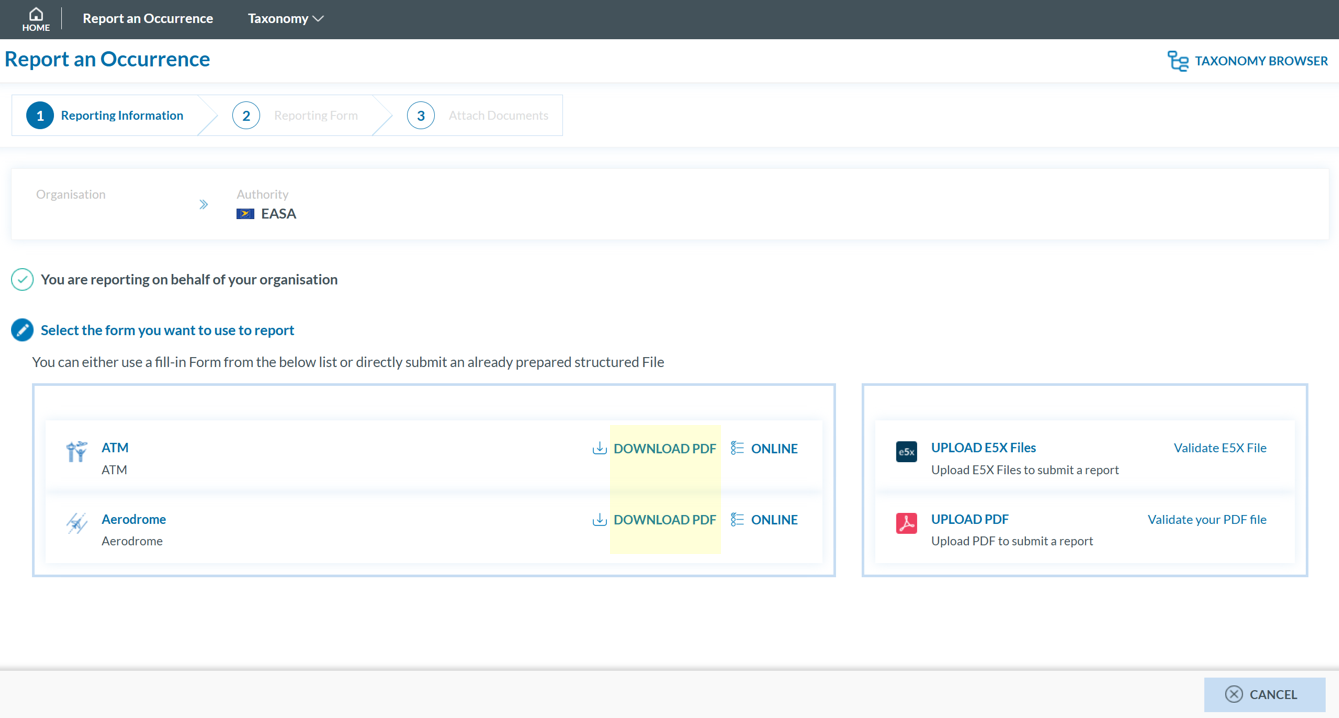
- Click ‘DOWNLOAD PDF’ to obtain the reporting form in PDF format.
- Use the free Acrobat Reader (Adobe's website) to fill the form. Other PDF applications may not work or corrupt the PDF form.
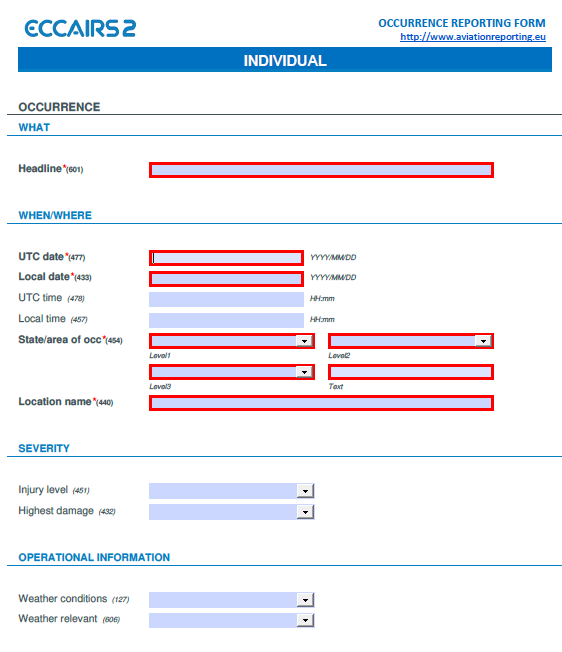
- Save the file to your device.
- Click ‘UPLOAD PDF’.
-
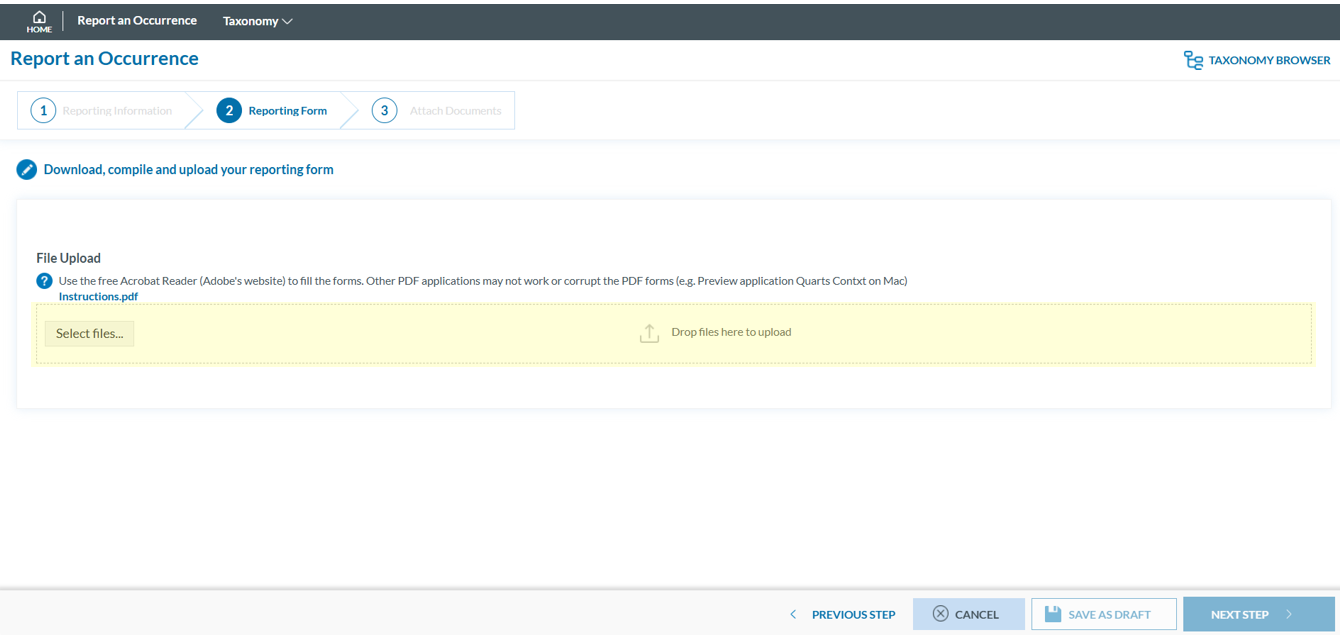
Attach the saved report by clicking the ‘Select files...’ button or by using drag and drop.
-
When the process is finish you will see a message stating "Your file(s) have been successfully uploaded."
To save a draft version, you can click ‘SAVE AS DRAFT’ below the form. The report will be stored in the 'Reports' list, accessible via the 'HOME' button at the top left of the page. You will also receive an email with a link to review and edit your saved draft report.
- Once the file has been uploaded, click 'NEXT STEP' to proceed.
- If applicable, attach any relevant documents by clicking 'Select files...' or by drag and drop.
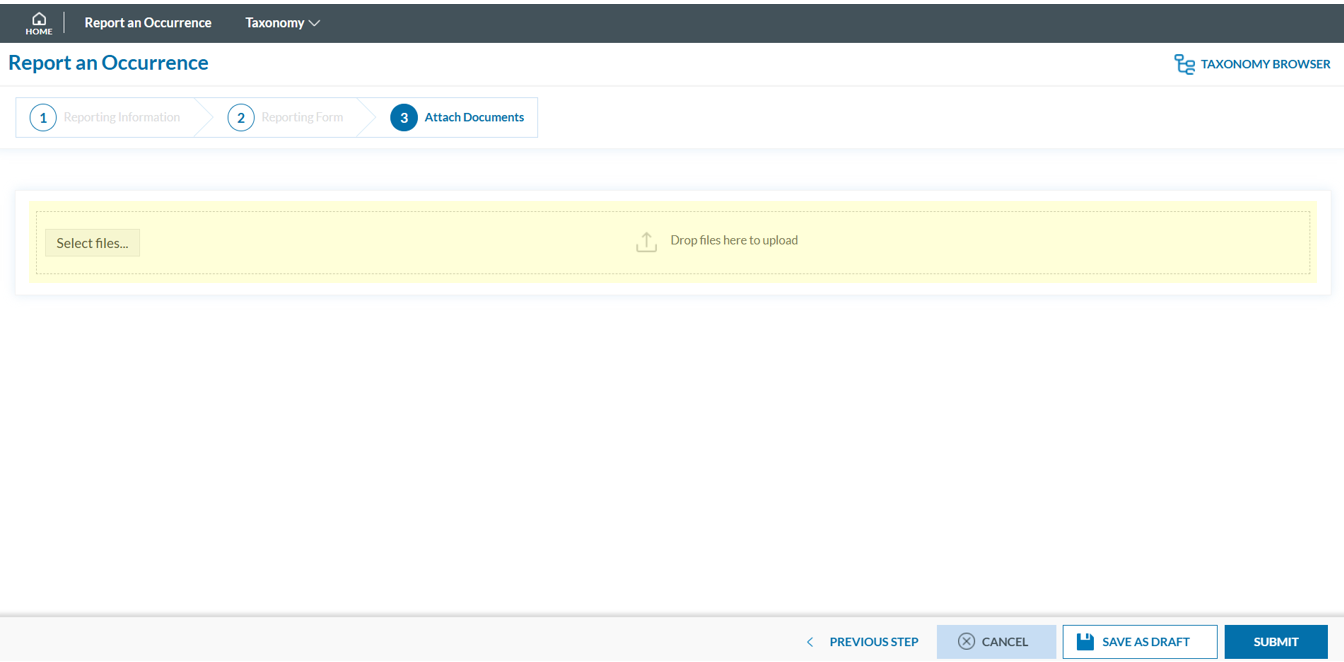
The system accepts files up to 4,000 MB in total. Supported formats include:
- Documents: .pdf, .doc/.docx, .ppt/.pptx, .xls/.xlsx/.xlsm, .xml, .rtf**, .odt**
- Images: .jpg/.jpeg, .png, .gif, .jtif**, .heic
- Media: .mp3, .mp4, .mov
- Others: .e5x, .e5z, .msg, .eml**, .zip**
❌ Files with .dll, .exe, .sys, or unknown extensions are not allowed.
You can add a description or remove the attached file by clicking on ‘x’ on the right.

-
If needed, you can return to the previous step using the 'PREVIOUS STEP' button.
In the 'Report Form' section, you can replace the uploaded report by clicking the pencil icon to the right of the document name.
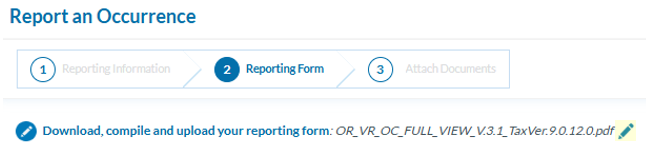
To save a draft version, you can click ‘SAVE AS DRAFT’ below the form. The report will be stored in the 'Reports' list, accessible via the 'HOME' button at the top left of the page. You will also receive an email with a link to review and edit your saved draft report.
- You may click 'SUBMIT' to send your report.
- You will get a confirmation saying that "You have successfully submitted your report(s).'
If any mandatory fields are left incomplete, a warning message will appear indicating which fields are missing. If you do not have the required information at the moment, you may still proceed by clicking 'SUBMIT'. However, the UTC Date, Reporting Entity and Report identification are the only fields required in order to submit a report.
Validate your PDF
To validate your PDF:
- Sign in to access the 'Report an Occurrence' page.
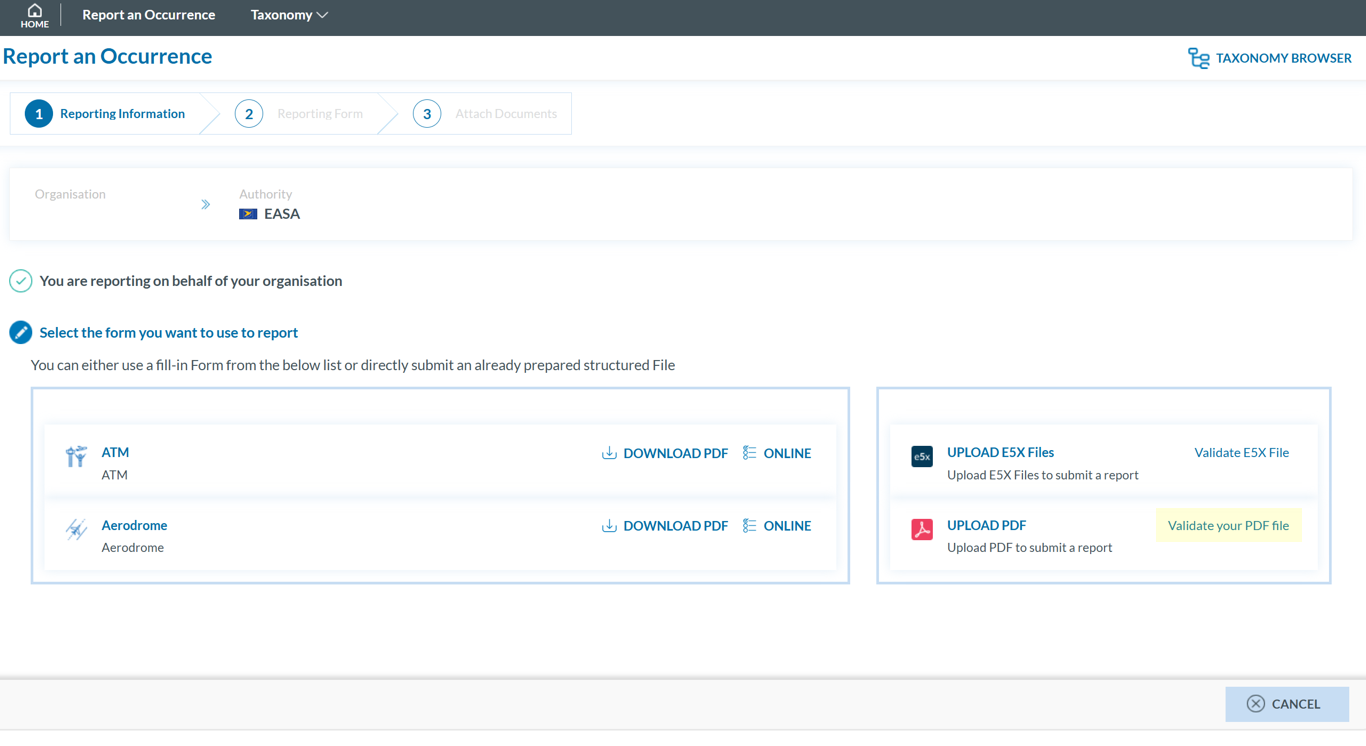
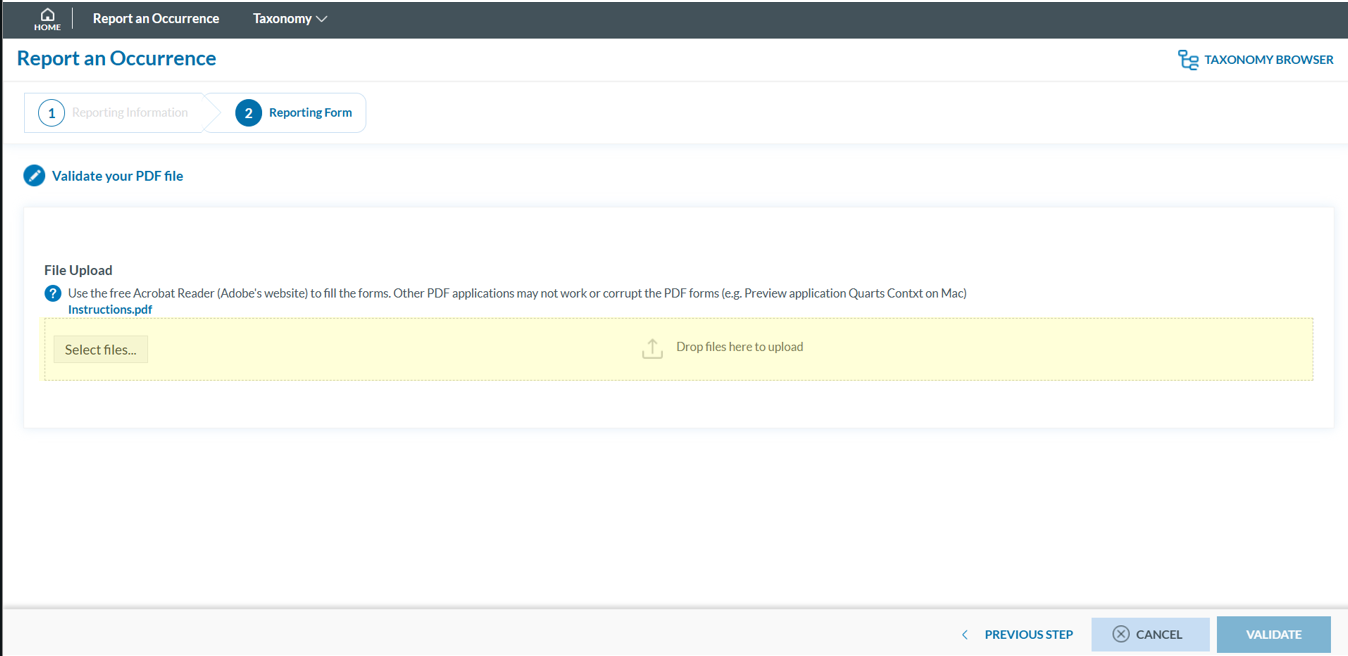
- Click 'Validate your PDF File'. The system will open the validation page:
-
Attach the PDF report to validate by clicking the ‘Select files...’ button or by using drag and drop. When the process is finish you will see a message stating 'Your file(s) have been successfully uploaded.'
-
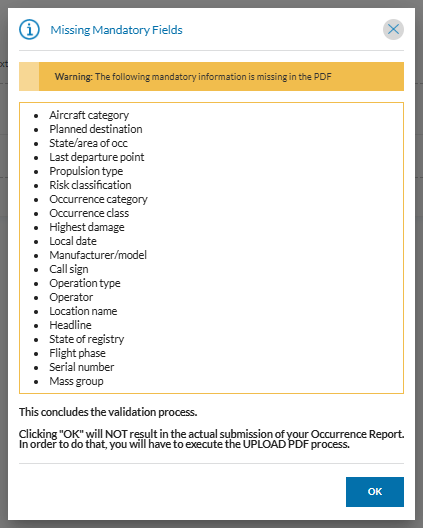
Click 'VALIDATE'. The system will either display a message stating 'Your PDF has been successfully validated' or highlight the mandatory fields that are missing in the PDF:
Report via E5X
E5X files are used by organisations to submit occurrence reports to E2. As these files are generated outside the system, they must be created in advance by an external application before they can be uploaded in the Reporting Portal or transmitted via the API. To be accepted by E2, the file must follow the required structure and pass validation checks.
This section provides an overview of the E5X reporting process. It explains how to create an E5X file, how to validate it, and how to use it to submit a report successfully.
E5X Creation
This section explains how to produce E5X files that E2 can import as Original Reports (ORs). It is intended for:
- reporting organisations whose systems send occurrence reports to their Competent Authority in E5X format, either through file upload or machine-to-machine (M2M) exchange via the E2 API;
- software providers that develop or maintain occurrence reporting, safety management, or maintenance tools capable of generating E5X files for their customers;
A working knowledge of XML and XSD 1.1 (XML Schema Definition) is recommended.
Key concepts
|
Term |
Meaning |
|---|---|
|
E5X |
ECCAIRS 5 eXchange format. An open, XML-based, W3C-compliant format for reporting occurrences electronically. The name still refers to ECCAIRS 5, but E2 uses the format unchanged. |
|
Data Bridge |
The mechanism that validates E5X content against the taxonomy XSD and converts it into ECCAIRS data. In E2, this conversion creates Original Reports. |
|
Taxonomy |
The data model that defines the entities, attributes, value lists and values available in ECCAIRS. In E2, the XSD is generated from the ECCAIRS Aviation taxonomy. The annotation at the top of |
|
RIT (domain) |
Reduced Information Taxonomy. The domain of the ECCAIRS Aviation taxonomy that organisations use to report occurrences in E5X format, defined for industry reporting under Regulation (EU) 376/2014. "RIT" describes the data content, while "E5X" describes the physical file format. In the XML, the taxonomy and the domain are declared separately ( |
|
XSD |
The XML Schema (declared as XSD 1.1) generated from a specific taxonomy version. It defines exactly which entities, attributes, values and formats are allowed. It consists of |
|
E5Z |
A related container used in E2 for migrating occurrences. Unlike E5X, it can carry legacy values and custom attributes. |
Background. ECCAIRS 5 used three formats: E5F, the native format of the local repository; E5X, for exchanging data; and later E5Z, created to migrate data from E1 to E2. E5F is not used in E2.
E2 accepts original reports with taxonomy version 4.1.0.7 or higher.
|
Channel |
Who |
What happens |
|---|---|---|
|
Upload an E5X in the Reporting Portal |
Registered organisation reporters |
The file is submitted to the Competent Authority and creates one or more ORs. |
|
M2M through the E2 API (method to create ORs from E5X files) |
Organisations with M2M access, usually through their software provider's tool |
Each XML in the package creates an OR. The source XML is attached to the OR as attribute 802 (Report). |
Updates. When an organisation sends an updated E5X for an existing report, the Authority can configure how it is handled.
- Incremental update: the new content is merged with the existing data.
- Full update: a new version is created from the latest file only.
Note. Organisations that report M2M in JSON (/occurrences/create) do not need the E5X/XSD structure. They need the taxonomy codes and the taxonomy JSON schema instead. This guide only applies when you send E5X.
The E5X package
An E5X file is a ZIP file with the .e5x extension:
-
Each occurrence is a separate XML file in the root folder. You can include several XMLs in one package.
-
The XML file name has no meaning for the content, but it must end in
.xml. E2 stores the file name as metadata (xmlName, ande5zNamefor the package). -
Use standard ZIP compression ("deflate"). Avoid maximum compression settings.
-
Quick check: rename
.e5xto.zipand open it with a standard ZIP tool.
Attachments
-
Put each occurrence's attachments in a folder with the same name as its XML (without the extension), at the root of the package.
-
Attachment file names are important. They must match the file names referenced in the XML (Resource Locator attributes) and are kept in E2.
-
The same file name can appear in different folders. Each attachment belongs only to the occurrence whose folder it is in.
-
You only need a folder for occurrences that have attachments.
Package.e5x
├── Occurrence_1.xml
├── Occurrence_2.xml
├── Occurrence_2/
│   ├── MaintenanceReport.pdf
│   └── Picture.png
└── Occurrence_3.xml
The XSD schema
Where to get it in E2: go to Taxonomy → Active Taxonomy, open the 3-dot menu of the taxonomy and choose "CSV and XSD files". This downloads a ZIP with the CSV and XSD files of that taxonomy version. You can also download the taxonomy as XML and the value lists as XLS.
The XSD package contains:
-
-
Schema.xsd: the master schema. -
dataTypes.xsd: general data type definitions. -
VL<id>.xsd: one file per value list (for example,VL127.xsdfor Wx_Conditions).
-
Why the taxonomy version matters
-
Each XSD is generated from one specific taxonomy version, and the
TaxonomyName,TaxonomyVersionandDomainvalues in the XML must match it. -
The receiving system can only process an E5X if it is configured for the taxonomy the file declares. Make sure you use the version your Authority currently accepts.
-
If your Authority has a custom taxonomy, download its XSD. Its custom value lists contain "Custom" in the XSD file name.
-
When E2 publishes a new taxonomy version, update the XSD in your tool and check new or changed attributes and value lists before start reporting with it.
Other points:
-
The annotations in the XSD only help readability. They are not used for validation.
-
To look up definitions, explanations and values, use the E2 Taxonomy browser: https://e2.aviationreporting.eu/taxonomy
In E2, the taxonomies are managed centrally, so check with your Authority which taxonomy version(s) it accepts.
The XML occurrence file
-
Encoding: UTF-8, declared in the XML prologue.
-
All tags are case-sensitive.
-
Escape special characters (for example,
<becomes<).
Note: the Schema.xsd file downloaded from E2 is itself encoded in UTF-16. This only applies to the schema file and does not change the encoding required for E5X XML files.
Basic structure:
<?xml version="1.0" encoding="utf-8"?>
<SET xmlns="http://eccairsportal.jrc.ec.europa.eu/ECCAIRS5_dataBridge.xsd"
     TaxonomyName="[4.1.0.7 or higher]"
     TaxonomyVersion="ECCAIRS Aviation"
     Domain="RIT"
     Version="1.0.0.0">
  <Occurrence>
    <ATTRIBUTES> ... </ATTRIBUTES>
    <ENTITIES> ... </ENTITIES>
    <LINKS> ... </LINKS>
  </Occurrence>
</SET>
The namespaces still point to the JRC/ECCAIRS 5 addresses. If they change in the future, E2 will tell all users and organisations involved.
The Schema.xsd file downloaded from E2 is encoded in UTF-16. This applies only to the schema file. E5X XML files must always use UTF-8 encoding.
SET (root node). TaxonomyName, TaxonomyVersion, Domain and Version are all required.
Occurrence. This is the root entity of the taxonomy (entity 24). It can contain three nodes:
ATTRIBUTES: the attributes of the entity.ENTITIES: physical child entities.LINKS: references to other physical entities.
Leave out any node that has no content.
Rules that most often cause rejections
- Order matters. Attributes, entities and links must follow the order of the XSD sequence. That order is the ascending taxonomy ID, not alphabetical order.
- Only send what you have. Include the attributes and entities that have data plus the mandatory ones. You don't need all of them.
attributeId/entityIdare optional. If you use them, they must match the fixed value in the XSD.- Cardinality. Respect
maxOccurs. To send a multi-value attribute, repeat the element, for exampleOccurrence_Categoryseveral times. - Only use codes from the value list. Coded attributes accept only the values in the corresponding VL.
- No time zones in Date, DateTime or Time values.
- Units are required and fixed. The
Unitattribute must match the fixed unit in the XSD. - Link IDs. Only declare an
IDon entities that can be link targets. Using it on any other entity causes a validation error. - Taxonomy match.
TaxonomyName,TaxonomyVersionandDomainmust match a taxonomy that the receiving system is configured for.
Data types
| ECCAIRS type | XML rule | Example |
|---|---|---|
| Alphanumeric | Up to 255 characters, or the size and pattern defined in the XSD | <Headline>Helicopter crashed…</Headline> |
| Text (long) | The text goes inside a PlainText or an EncodedText element (base64 RTF), not both. The element declares the data types namespace (see the example below) |
|
| Code | Value from the Value List | <Occurrence_Class>100</Occurrence_Class> |
| Code + Additional Text | Code plus AdditionalText and AdditionalTextEncoding (xs:string / xs:base64Binary) |
|
| Code or Alternative Text | Code or AlternativeText. If text is given, the code is ignored |
<FIR_UIR_Name AlternativeText="…" AlternativeTextEncoding="xs:string"></FIR_UIR_Name> |
| Date | YYYY-MM-DD |
2025-03-22 |
| DateTime | YYYY-MM-DDThh:mm:ss |
2025-03-22T09:30:47 |
| Time | hh:mm:ss |
09:30:47 |
| Decimal | Decimal separator .; limits as defined in the XSD |
<Dew_Point Unit="C">-8.453</Dew_Point> |
| Number | Integer within the XSD limits | <Total_Number_Of_Persons>27</Total_Number_Of_Persons> |
| Latitude / Longitude | Decimal degrees (−90/+90, −180/+180). Formula: DD + mm/60 + ss/3600 | 45.80383 / 8.62965 |
| Resource Locator | The file must be in the attachment folder |
|
For base64 text: convert the string to bytes using UTF-8, then encode it in base64 (MIME, RFC 2045).
Not supported in RIT/E5X: ECCAIRS Data Link and ECCAIRS Embedded Data. E2 manages these types, but the E5X RIT schema does not support them.
Some predefined value lists are shared between attributes and the accepted values are consequently the same for each attribute.
Entity structure
Entities can be nested (parent → child → grandchild). Group the child entities of the same parent inside that parent's ENTITIES node.
Identifiers (E5X ID)
Each entity instance in an E5X file can have its own identifier in the ID attribute. This is called the E5X ID or External ID.
- The ID must be unique in the XML and follow NCName rules: it starts with a letter or underscore and contains no spaces.
- Recommended ID pattern:
ID_<entityId>_<instance>, for exampleID_4_1.
Links
A link points to a physical entity using REF, which must match that entity's ID. A link has no data of its own:
<Aircraft REF="ID_4_2" /><SET xmlns="http://eccairsportal.jrc.ec.europa.eu/ECCAIRS5_dataBridge.xsd" Domain="RIT" TaxonomyName="ECCAIRS Aviation" TaxonomyVersion="9.0.0.1" Version="1.0.0.0">
<Occurrence>
<ATTRIBUTES>
<Occurrence_Category>29</Occurrence_Category>
<Occurrence_Class>502</Occurrence_Class>
<Highest_Damage>98</Highest_Damage>
<Local_Date>2026-10-22</Local_Date>
<Location_Name>Madrid</Location_Name>
<File_Number>OC-EASA-2026000000000001418</File_Number>
<Responsible_Entity>3004</Responsible_Entity>
<UTC_Date>2026-10-22</UTC_Date>
<UTC_Time>02:00:00</UTC_Time>
</ATTRIBUTES>
<ENTITIES>
<Aircraft ID="ID000000000000000000000000004C7A9F">
<ATTRIBUTES>
<Manufacturer_Model>90001</Manufacturer_Model>
<Aircraft_Category>54</Aircraft_Category>
<Total_Number_Fatalities>0</Total_Number_Fatalities>
<Total_Number_Of_Persons>0</Total_Number_Of_Persons>
<Operation_Type>31</Operation_Type>
<Operator>10004750</Operator>
<Aircraft_Registration>EC-XXR</Aircraft_Registration>
<Serial_Number>11111</Serial_Number>
<Total_Number_Serious_Injuries>0</Total_Number_Serious_Injuries>
<State_Of_Registry>221</State_Of_Registry>
<Mass_Group>99</Mass_Group>
</ATTRIBUTES>
</Aircraft>
<Reporting_History ID="ID000000000000000000000000004C7A9E">
<ATTRIBUTES>
<Reporting_Entity>5165</Reporting_Entity>
<Reporting_Date>2026-10-22</Reporting_Date>
<Reporter_S_Description>
<PlainText xmlns="http://eccairsportal.jrc.ec.europa.eu/ECCAIRS5_dataTypes.xsd">This is an example.</PlainText>
</Reporter_S_Description>
</ATTRIBUTES>
</Reporting_History>
</ENTITIES>
</Occurrence>
</SET>How the system identifies Entities Instances (IDs and Key Attributes)
When a report is submitted through an E5X file, each entity instance may include its own identifier. If an ID is provided in the file, the system uses it to identify the relevant entity instance in any subsequent updates. If no ID is included, the system attempts to identify the instance using its Key Attribute (KA).
For reports created online, through a PDF, or via the API, the application generates the IDs automatically. In E5X, if an ID is not provided, it is also generated automatically by the E2 system.
Key Attributes
A Key Attribute is a unique attribute, defined centrally by EASA, that identifies an instance. Each instance can have only one KA. These are the KAs currently available:
| Entity | Key Attribute |
|---|---|
| Aircraft | Aircraft Registration Number |
| Aerodrome | Location Indicator |
| Air Navigation Service | ATS Unit Name |
| Airspace | FIR/UIR Name |
| Narrative | Narrative Language |
| Events | Event Type |
| Reporting History | Report Identification |
If the KA is present, the system compares it with the instances already in the report:
- If the KA matches, the existing instance is updated.
- If no KA matches, a new instance is created.
The following instance IDs : [ID01, ID02] are already in use within the entity <entity description> or one of its sub-entities, in the previous version of the report
What the error means: The number in the message is taxonomy code of the entity, for example 4 = Aircraft.
When a report update arrives, the system has to work out which existing entity instance each element in the file refers to. It uses the instance ID and the entity's KA. For Aircraft, the KA is Aircraft Registration.
The error happens when both of these are true:
- The report has two instances of the same entity with the same KA.
- An update arrives where the IDs of those instances don't match the original ones, but it reuses IDs of sub-entities that already exist.
The system can't tell which of the two instances to update, so it tries to create new ones. Validation then fails because the sub-entity IDs are already in use, and the file is set to Not migrated.
File 1: Initial submission (accepted)
<ENTITIES>
  <Aircraft ID="ID0000000000000000000000000000AC01">
    <ATTRIBUTES><Aircraft_Registration>EC-XXR</Aircraft_Registration></ATTRIBUTES>
    <ENTITIES><Engine ID="ID0000000000000000000000000000EN01"> ... </Engine></ENTITIES>
  </Aircraft>
  <!-- ⚠️ Same KA (EC-XXR) in a second instance -->
  <Aircraft ID="ID0000000000000000000000000000AC02">
    <ATTRIBUTES><Aircraft_Registration>EC-XXR</Aircraft_Registration></ATTRIBUTES>
    <ENTITIES><Engine ID="ID0000000000000000000000000000EN02"> ... </Engine></ENTITIES>
  </Aircraft>
</ENTITIES>
File 2: Update that triggers the error
The sending system regenerates the Aircraft IDs (AC11, AC12) but keeps the Engine IDs:
<ENTITIES>
  <Aircraft ID="ID0000000000000000000000000000AC11">   <!-- New ID: no match -->
    <ATTRIBUTES><Aircraft_Registration>EC-XXR</Aircraft_Registration></ATTRIBUTES>
    <ENTITIES><Engine ID="ID0000000000000000000000000000EN01"> ... </Engine></ENTITIES>  <!-- ID already exists -->
  </Aircraft>
  <Aircraft ID="ID0000000000000000000000000000AC12">   <!-- New ID: no match -->
    <ATTRIBUTES><Aircraft_Registration>EC-XXR</Aircraft_Registration></ATTRIBUTES>
    <ENTITIES><Engine ID="ID0000000000000000000000000000EN02"> ... </Engine></ENTITIES>  <!-- ID already exists -->
  </Aircraft>
</ENTITIES>
What happens:
- AC11 and AC12 don't exist in the report, so nothing matches by ID.
- The system searches by KA (EC-XXR) and finds two instances. It can't decide which one to update.
- It tries to create two new Aircraft instances, but their Engines (EN01, EN02) already exist in the report.
- Result: "The entity instance 4 is already in use within this entity or one of its sub-entities", and the file is set to Not migrated.
Correct way to report
Report one instance per registration, with both engines as sub-entities. Even if the IDs change, the KA points to only one instance:
<ENTITIES>
  <Aircraft ID="ID0000000000000000000000000000AC01">
    <ATTRIBUTES><Aircraft_Registration>EC-XXR</Aircraft_Registration></ATTRIBUTES>
    <ENTITIES>
      <Engine ID="ID0000000000000000000000000000EN01"> ... </Engine>
      <Engine ID="ID0000000000000000000000000000EN02"> ... </Engine>
    </ENTITIES>
  </Aircraft>
</ENTITIES>
Ideally, updates should also keep the same IDs. If they don't, the unique KA still lets the system find the right instance.
Recommendations for E5X reporters
Entity instances and Key Attributes
-
Report each real-world object only once. Don't split one object's information across several instances of the same entity. For example, report one Aircraft with two Engine sub-entities, not two Aircraft with one engine each.
-
Never repeat a Key Attribute (KA) in two instances of the same entity. Examples of KAs are Aircraft Registration, ANSP Name and the aerodrome Location Indicator. If the IDs don't match, the system can't tell which instance to update and the file is rejected.
-
Fill in the KA whenever possible. If no matching ID is provided, the KA is the only way the system can match the instance. Without it, the system creates a new instance. For an existing report, it raises a Conflict for the Authority to resolve instead.
-
Keep KA values consistent. Use the same value and format for the same instance in every submission, for example the same registration format. Otherwise the system treats it as a different instance.
Instance IDs
-
Keep IDs unique within the whole report. Each instance ID must be unique across all entities and sub-entities in the file, not just within one entity.
-
Keep IDs stable across updates. When updating a report, use exactly the same ID for an instance as in the original submission. Don't renumber or regenerate IDs between versions.
-
Never reuse an existing ID for a new instance. A new instance needs an ID that hasn't been used before in that report.
Updates to reports created elsewhere
-
Match the IDs the application generated. If a report was created Online, through PDF or through the API, the application generated its IDs. An E5X update for that report must reference those IDs, or rely on the KAs, to be matched correctly.
What happens after an update
When the Reporter updates an OR, the system automatically applies the changes to the related reports. A Conflict is created if:
- the update tries to change information the Officer has already modified; or
- the system can't work out which instance the update belongs to (no E5X ID and no KA).
While a Conflict is open, the VR is blocked and no further updates are applied until the Officer resolves it. Sending correct IDs and KAs therefore reduces both rejected submissions and Conflicts on the Authority's side.
Validate an E5X file
To validate an E5X file before reporting:
- Sign in to access the 'Report an Occurrence' page.
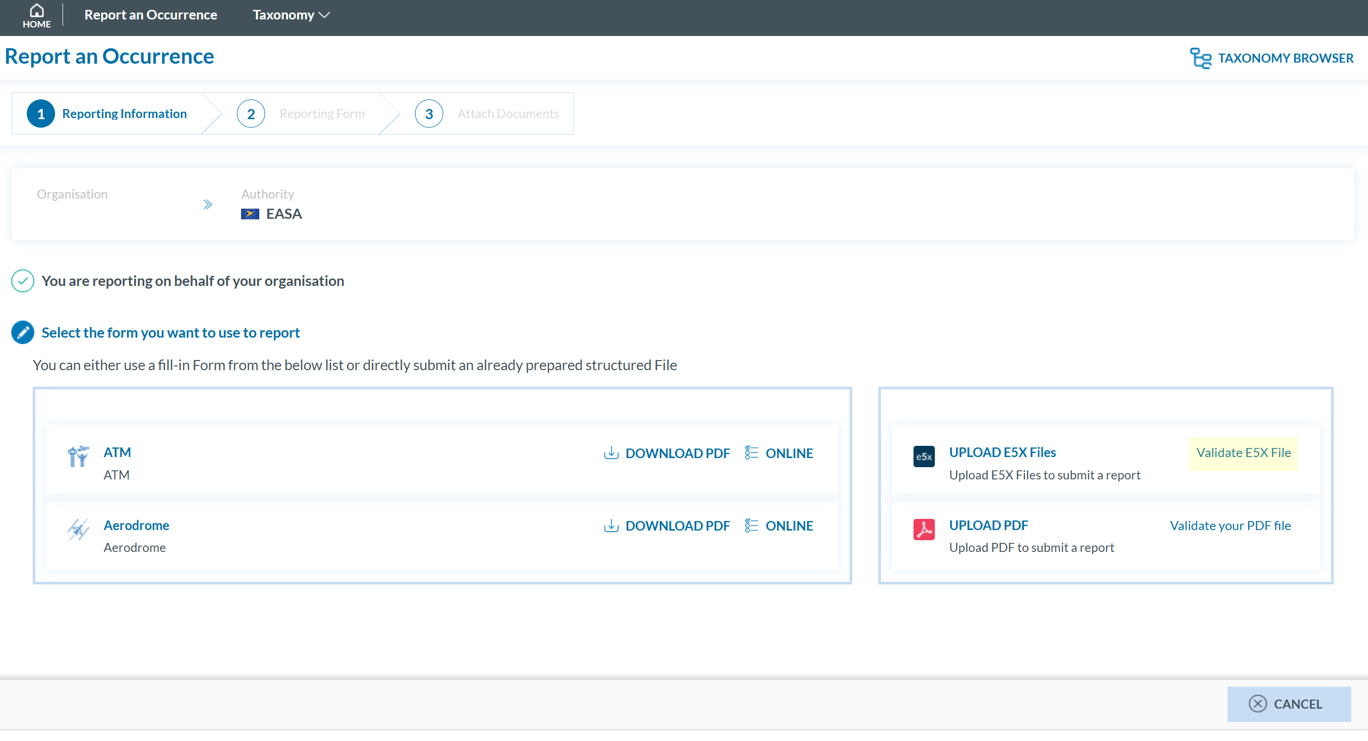
- Click 'Validate E5X File'.
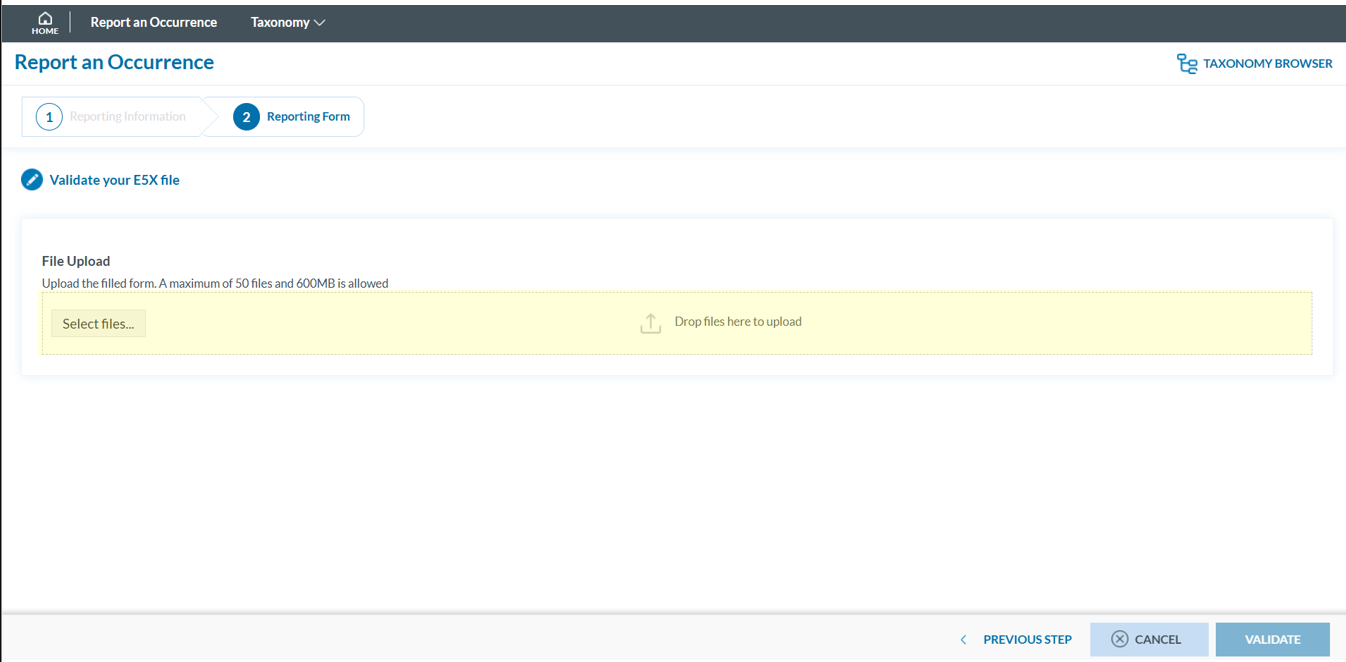
- Click 'Select files...' or drag and drop to upload (max 50 files, 600 MB total).
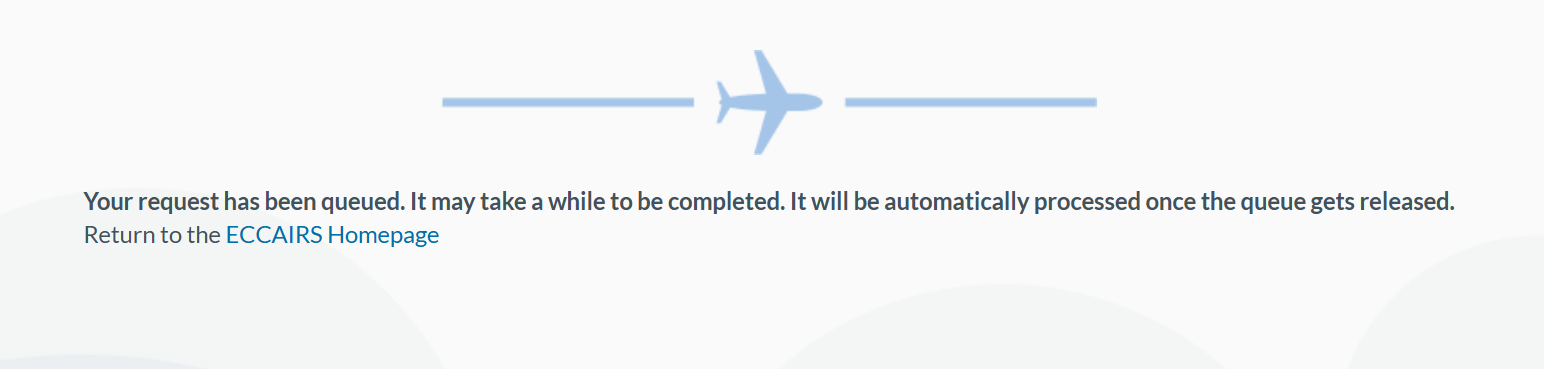
- Click 'VALIDATE'. The following message is displayed, and an automatic confirmation email will be sent to the Reporter’s email address.
Report using an E5X file
To report through E5X on behalf of your organisation:
- Sign in to access the 'Report an Occurrence' page.
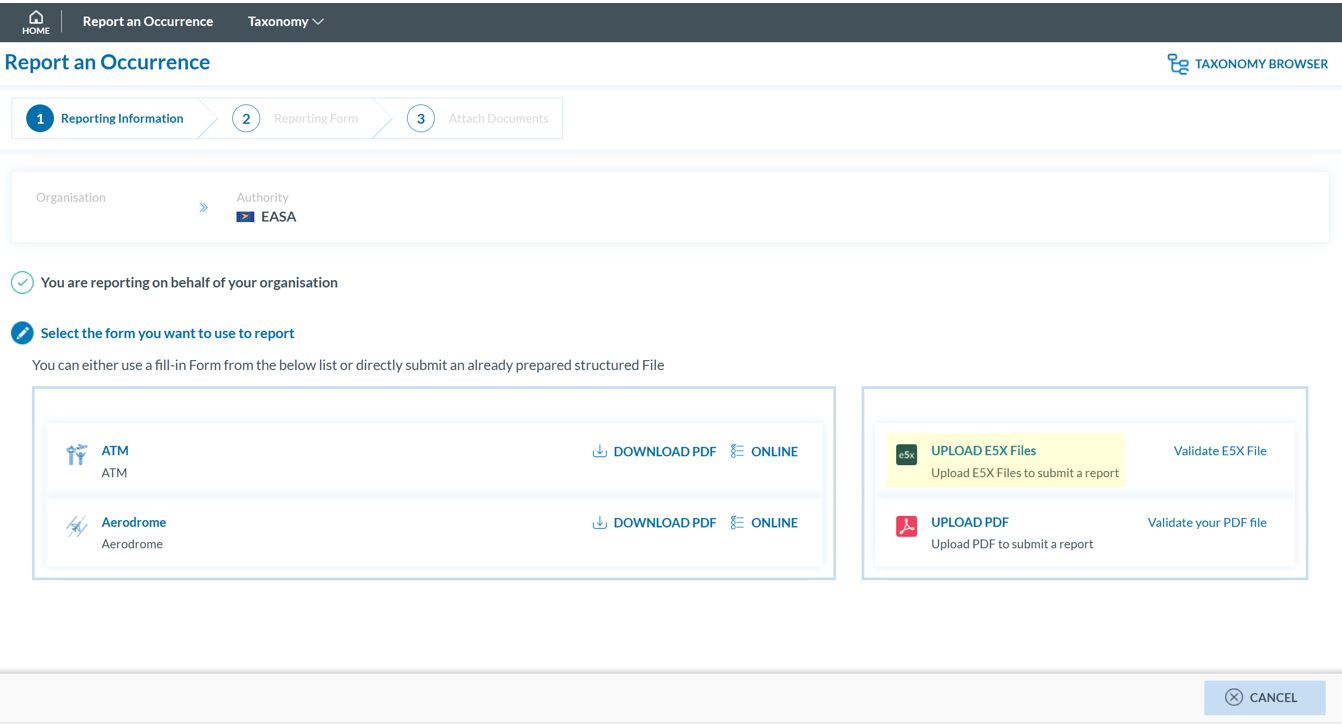
- Click 'UPLOAD E5X Files'.
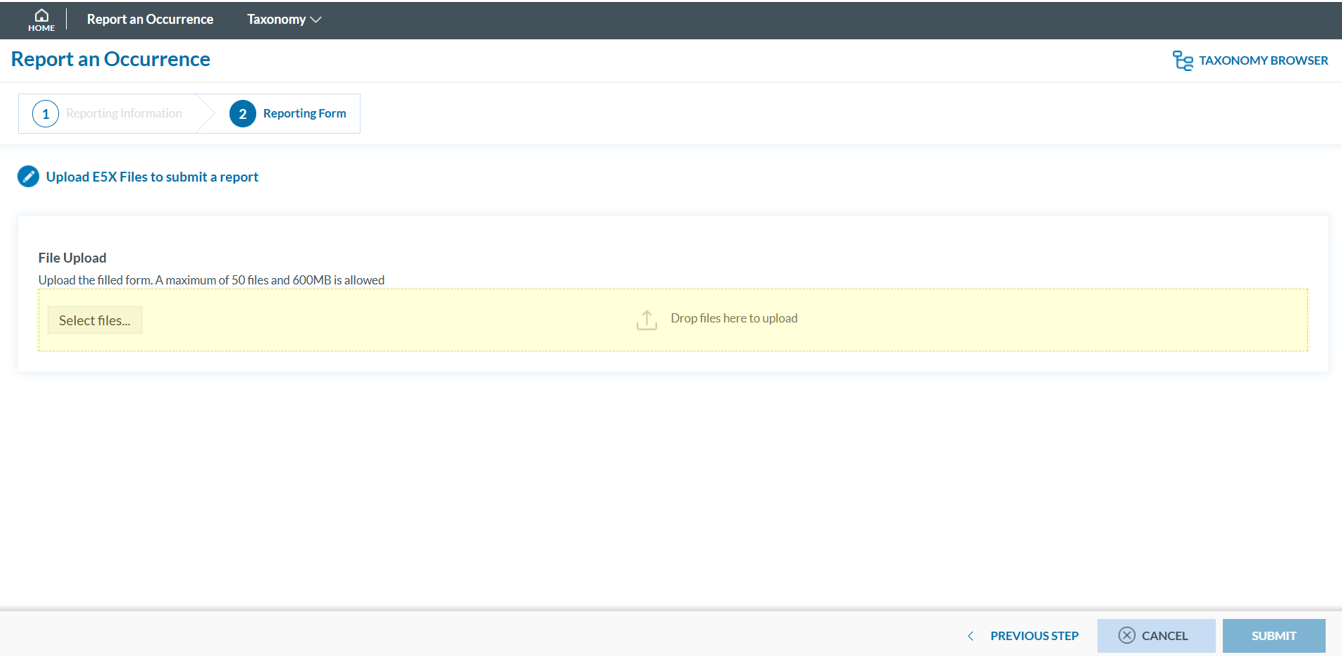
- Click 'Select files...' or drag and drop to upload (max 50 files, 600 MB total).
- Click 'SUBMIT'. The following message is displayed, and an automatic confirmation email will be sent to the Reporter’s email address.
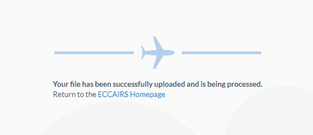
The record(s) contained in the E5X file(s) will be saved in the database as Original Reports.
4.6.2. Reporting through the E2 API
What is M2M reporting?
M2M reporting lets an organisation's own system, such as its Safety Management System or a provider's software, send occurrences to ECCAIRS 2 (E2) automatically through the API, with no manual input. It is an alternative to the Reporting Portal web forms and to uploading files by hand.
Roles and responsibilities
-
Software provider / organisation: builds and runs the system that connects to E2. It also takes part in technical testing.
-
E2 Support Team: runs the first technical stage (the Sandbox Authority stage) in UAT. It also sets up the M2M test account for that stage.
-
National Competent Authority (NCA): enables M2M reporting for the organisation in the UAT and Production stages, then reviews and validates the test reports.
-
The M2M user is created by a National Security Administrator with the M2M CRUD permission.
-
If the M2M tab does not appear in the user creation window, the administrator does not have this permission. The Authority must then request it from the E2 Support Team via the E2 Help Desk.
-
-
Organisation Administrator: can view the organisation's M2M user but cannot create or change it.
An organisation cannot set up M2M reporting on its own. It must complete the onboarding stages described in Section 7.
Prerequisites
|
Requirement |
Details |
|---|---|
|
Technical focal point(s) |
Contact details of the technical person or people responsible for the integration. |
|
Static public IP address(es) |
The IP addresses or ranges (with mask) your systems will connect from. They are added to the whitelist of each environment (UAT and PROD). |
|
Organisation account in E2 |
The organisation must exist in E2 as a reporting entity. This is needed for the UAT and Production stages. |
|
Technical solution |
An in-house or third-party system that uses the E2 API as described in the E2 API Guide for Organisations. |
|
OAuth2 authentication |
The integration must use the current OAuth2-based authorisation server. |
Data formats: JSON or E5X
An M2M user can submit occurrences to E2 through the API in either of two formats.
-
JSON: the occurrence is sent through the E2 API as a JSON structure.
-
E5X: the occurrence is sent through the E2 API as an .E5X file. The file follows the standard ECCAIRS 2 Data Bridge specification: a compressed container that holds the XML structure and any attachments. The XML must be valid against the RIT / E5X Data Bridge XML Schema (.xsd).
For both formats:
-
The content must map to the active ECCAIRS taxonomy.
-
Matching follow-ups to the Original Report (OR): when you submit follow-up information, E2 finds the existing Original Report in one of two ways:
-
by the unique system reference (e2Id, for example OR-...) provided through the API, or
-
by the combination of these key attributes:
-
452 / 438 – File Number / Report Identification (the operator's internal reference)
-
447 – Reporting Entity
-
453 – Responsible Authority (the receiving Authority)
-
477 – UTC Date of the occurrence
-
-
-
Versioning: once a match is found, E2 creates a new minor version of the Original Report (for example, from version 0.1 to 0.2) and keeps the full audit trail.
-
Report lifecycle: to move from the initial notification to a preliminary follow-up and then to the final closed report, update the Report Status (Attribute 800) and the matching Reporting Date (Attribute 801) in the Reporting History entity (Entity 53).
Tip: to make sure follow-ups match the right report, send the same values for the identifying attributes in every submission, or include the e2Id.
The E2 API Guide for Organisations explains how to submit reports through the API in both formats, including the endpoints and request structure. Use whichever format fits your system best.
The M2M user
-
One M2M user per organisation. The M2M user is a non-human user linked to the reporting entity.
-
More than one machine can use it. The M2M user is the gateway into E2, so any system connecting from a whitelisted IP address can use it.
-
Single role. It can only have the dedicated M2M role; no other roles can be added.
-
Automatically generated identifier, in the format
M2M_ISO2_E2ID:-
M2M_: fixed prefix -
ISO2: two-letter country code (ES, BE, FR, DE…) -
E2ID: the organisation's internal E2 code
-
-
It cannot be deleted. If it is no longer used, the Authority must deactivate it according to its own procedures.
Several organisations using the same software
If one software product or provider reports for several organisations (for example, several aerodromes), each reporting organisation needs its own M2M user. The software must use the right organisation's M2M user for each submission. Large providers serving organisations under different Authorities already work this way.
Onboarding stages
Stage 1 – Sandbox Authority (UAT environment)
-
Purpose: a purely technical IT step. It shows that the organisation or software provider can connect to E2 and send reports through the API.
-
What is not checked: the content, quality and completeness of the reports.
-
Who takes part: only the software provider and the E2 Support Team. The National Competent Authority is not involved.
-
What happens: the E2 Support Team sets up an M2M test account linked to the Sandbox Authority in UAT.
-
What you need to provide:
-
Contact details of the technical focal point(s)
-
Static public IP address(es) to be whitelisted for UAT
-
-
How to start: send this information to the E2 Support Team. To find out how to contact them, see Support and Maintenance.
Stage 2 – UAT (UAT environment)
-
When API reporting works in the sandbox, the E2 Support Team tells the provider to contact the relevant Authority.
-
The Authority enables M2M for the organisation in UAT.
-
The organisation sends reports through it.
-
The Authority reviews and validates the reports for completeness and correctness.
Stage 3 – Production (PROD environment)
-
When UAT testing is complete, production credentials are issued.
-
Important: each environment has its own IP whitelist. Make sure your IP addresses are also registered for PROD.
Support and maintenance
Support
Questions about connecting your application to the E2 API, and any problems during or after onboarding, are handled by the E2 Support Team through the E2 M2M Service Desk.
-
Request access: organisation administrators can request access to the service desk here: Request access to E2 M2M Service Desk.
-
Contact the E2 Support Team: once your account has been created and activated, raise your requests through the E2 M2M Service Desk. When reporting a problem, include the environment (UAT or PROD), the M2M user and the source IP address so the team can look into it quickly.
-
If you can't get access: email eccairs2@easa.europa.eu and the support team will send you a Jira invitation to the service desk.
Maintenance
IP address changes: if the IP addresses your systems connect from change, tell the Authority so it can update the whitelist. Connections from IP addresses that are not whitelisted will fail authentication, for example with a 401 error.